Managing Templates
Templates define the structure and layout of your pages. This guide covers creating, editing, and managing templates.
What is a Template?
A template is a reusable page layout that defines:
- Fixed Areas: Regions with components that appear on every page using the template (e.g., header, footer)
- Content Zones: Drag-and-drop regions where editors can add and arrange components when creating pages
- Page Type: A classification label (e.g., "Page", "Article", "Blog")
Creating a Template
- Navigate to Sites → Select your site → Templates
- Click Create Template
- Fill in the template details:
- Name: A descriptive name (e.g., "Blog Post Layout")
- Description: Optional explanation of when to use this template
- Page Type: Select from available types (Page, Article, Blog, or custom types)
- Click Create
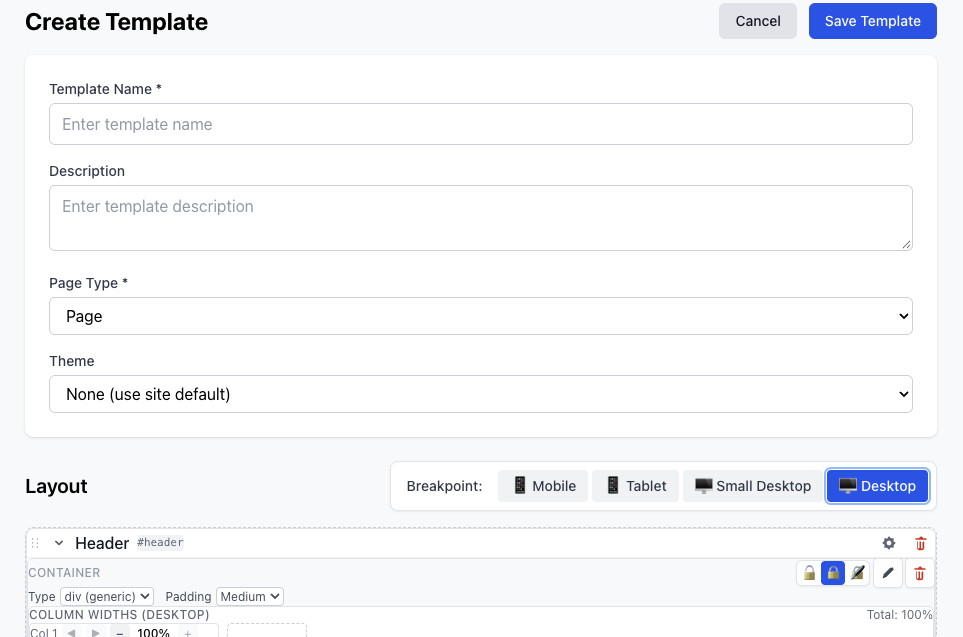
Template Editor
The template editor provides a visual layout builder where you can:
- Add fixed areas and content zones
- Arrange regions in top-to-bottom order
- Configure components in fixed areas
- Preview the template structure
Adding Fixed Areas
Fixed areas contain components that appear on every page using the template.
- Click Add Fixed Area
- Drag components from the component palette into the fixed area
- Configure each component's properties using the dialog editor
- Reorder components by dragging
Common use cases:
- Site header with logo and navigation
- Footer with copyright and links
- Sidebar with consistent widgets
Adding Content Zones
Content zones are empty regions where page editors can add components.
- Click Add Content Zone
- Give the zone a descriptive name (e.g., "Main Content", "Sidebar")
- Optionally add a label for editors (e.g., "Add your article content here")
Best practices:
- Use clear, descriptive zone names
- Provide helpful labels to guide content editors
- Consider the typical content flow when ordering zones
Editing Templates
To edit an existing template:
- Navigate to Sites → Select your site → Templates
- Click the template you want to edit
- Make your changes in the template editor
- Click Save
Important Notes
- Changes to templates do not automatically update published pages
- Pages using the template will use the new layout when republished
- Fixed area changes affect all pages using the template
Duplicating Templates
To create a new template based on an existing one:
- Navigate to the template list
- Click the ⋮ menu next to the template
- Select Duplicate
- Enter a new name for the duplicated template
- Click Duplicate
This creates an exact copy of the template structure, which you can then modify.
Deleting Templates
To delete a template:
- Navigate to the template list
- Click the ⋮ menu next to the template
- Select Delete
- Confirm the deletion
Important: You cannot delete a template if any pages are currently using it. You must first:
- Delete all pages using the template, or
- Change those pages to use a different template
Template Best Practices
Structure
- Keep it simple: Start with basic layouts and add complexity as needed
- Consistent headers/footers: Use fixed areas for elements that should appear on every page
- Flexible content zones: Provide enough zones for varied content without overwhelming editors
Naming
- Use descriptive names that indicate the template's purpose
- Include the page type in the name if you have multiple templates per type
- Examples: "Standard Page", "Blog Post with Sidebar", "Landing Page - Hero"
Page Types
- Use Page for general content pages
- Use Article for news articles or blog posts
- Use Blog for blog-specific layouts
- Create custom page types for specialized content (e.g., "Product", "Event")
Related Topics
- Creating Pages — Use templates to create pages
- Component Structure — Learn about components
- Building Sites — Site architecture best practices