Creating Sites
This guide walks you through creating and configuring new sites in the Serverless CMS.
Overview
A site is a logical website identified by a fully-qualified domain name (FQDN). Each site has its own templates, pages, and content, and can be managed independently.
Creating a New Site
- Navigate to Sites from the main navigation
- Click Create Site
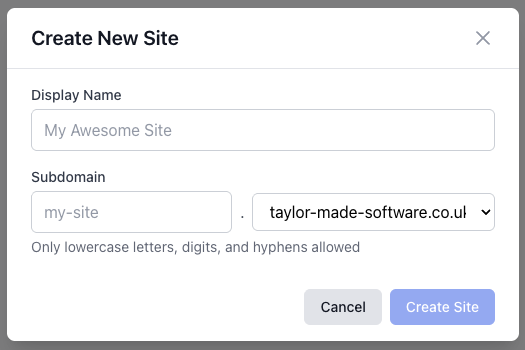
- Fill in the site details:
- Subdomain: The subdomain for your site (e.g., mysite)
- Root Domain: Select from available root domains (e.g., example.com)
- Display Name: A friendly name for your site (e.g., "My Awesome Site")
- Click Create
Subdomain Rules
- Must contain only lowercase letters, digits, and hyphens
- Cannot start or end with a hyphen
- Maximum 63 characters
- Must be unique across all sites
Valid examples: mysite, blog-2024, company-portal
Invalid examples: MyS ite, site_name, -mysite, mysite-
What Happens When You Create a Site
When you create a site, the system automatically:
- Creates the site record with your chosen domain
- Generates a default template with a single content zone
- Creates a home page (slug /) using the default template
- Creates an Error Page template and Error Page (see below) so the 404/500 response served by CloudFront can be edited like any other page.
- Provisions four site groups for access control:
- {siteName}-admin: Full site management
- {siteName}-author: Create and edit pages
- {siteName}-templates: Manage templates
- {siteName}-publish: Publish and unpublish pages
The Site Identifier
Each site gets a short site identifier, used as its key in the database, as the prefix for its stored files, and as the prefix of its four group names above.
The identifier comes from the domain, not the display name, because the domain is unique and cannot be changed after creation — display names can be edited and two sites may share one.
Domain | Site identifier |
|---|---|
site2.example.com | site2 |
blog.example.com | blog |
www.example.com | example |
www identifies the host rather than naming the site, so for a www site the identifier is taken from the domain name instead — a site on www.example.com is example, not www.
If the identifier is already taken (for example site2 on two different root domains) a number is appended: site2-2, site2-3, and so on.
Existing sites keep the identifier they were created with. This naming
rule applies to newly created sites only.
The Error Page
Alongside the Home page, every new site gets a second root-level page called Error Page, backed by its own Error Page template. It appears in the admin page tree so authors can edit it — change the copy, drop in components, apply the site's theme — but it is never routable as a normal URL:
- The publisher writes it to error.html in the site's Publish_Store bucket, which CloudFront serves as the 404 / 500 response.
- Its slug is a reserved sentinel (__error) so no authored page can collide with it.
- It's excluded from the site navigation component and from sitemap.xml.
Publishing the Error Page from the editor just refreshes error.html; there is no separate URL to hit and no way for a visitor to reach the page except by triggering a 404 / 500.
Site Settings
After creating a site, you can configure additional settings:
General Settings
- Display Name: Update the friendly name
- Default Language: Set the primary language (ISO 639-1 code, default: en)
Domain Configuration
The domain (subdomain + root domain) is immutable after creation. If you need to change it, you must create a new site and migrate content.
Site Groups and Permissions
Site groups control who can access and manage your site. See User Management for details on assigning users to site groups.
Deleting a site and reusing its domain
Deleting a site (Sites → Delete) tears down its cloud resources — the CDN distribution, the TLS certificate and the DNS record — then removes the site's content and finally the site record itself.
The domain is only released when that last step completes. The site record is what reserves the domain, so removing the distribution, certificate or DNS record by hand does not free it. If you try to create a new site on that domain you get:
- "Domain already exists" — a site still holds the domain. Delete that site in the Sites list.
- "Domain is already in use in DNS" — an A or CNAME record for the domain still exists in the hosted zone.
Deleting a site whose cloud resources have already been removed by hand is supported: each teardown step treats an already-missing resource as done and carries on, so the deletion still finishes and frees the domain.
If a deletion fails part-way the site is marked delete-failed; you can simply run Delete again. To see exactly what is holding a domain, run scripts/diagnose-domain-conflict.sh <domain> (read-only).
Viewing Site Details
Click on any site in the Sites list to view:
- Site metadata (domain, creation date, last updated)
- Quick links to templates, pages, and settings
- Publish status summary
- Recent activity
Next Steps
- Create templates to define page layouts
- Create pages to add content
- Configure SEO settings for better search visibility
- Set up theming to customize appearance
Tips
- Plan your subdomain carefully — it cannot be changed later
- Use descriptive display names to help team members identify sites quickly
- Assign site groups early to ensure proper access control from the start